How to Set Up a VPN on Your Wi-Fi Router for Entire House

OUR EXPERT
Alex Rivera
Alex RiveraLead Security Analyst

The CompareVPNList expert team has tested VPNs and security tools year-round to verify encryption, speed, and real-world privacy protection.

LOOK INSIDE OUR LABSHOW WE TEST
10+EXPERTS
5+YEARS
43K+REVIEWS
Updated Jul 27, 2026

Securing your personal privacy across modern households can be a daunting technical challenge. The average household today connects dozens of internet-enabled devices-ranging from personal laptops and smartphones to Smart TVs, gaming consoles, streaming dongles, smart speakers, and automated home security gadgets. Installing and managing individual VPN applications on every single device is tedious, and many smart home devices do not natively support VPN software at all.

Installing a VPN directly on your Wi-Fi router solves this problem permanently. By encrypting network traffic at the router level, every device that connects to your home Wi-Fi-whether via Ethernet cable or wireless signal-is automatically shielded behind a secure VPN tunnel.

This comprehensive technical guide explains how router-level encryption works, guides you through hardware requirements, provides step-by-step setup instructions for popular router firmware (AsusWRT, DD-WRT, OpenWrt), details key features to evaluate from our top-ranked VPN providers list, and outlines advanced split tunneling configurations.

1. Why Install a VPN on Your Home Router?

Configuring a VPN at the network gateway level fundamentally transforms your household cybersecurity posture. Instead of managing individual software applications across fragmented devices, your router becomes a centralized security fortress.

Key advantages of a whole-house router VPN setup include:
  • Universal Device Coverage: Automatically protects devices that cannot natively install VPN software, such as Apple TV, PlayStation 5, Xbox Series X, Samsung Tizen Smart TVs, LG WebOS, and IoT smart appliances.
  • Single Connection Slot Utilization: Commercial VPN providers limit subscriber accounts to a set number of simultaneous connections (e.g., 5 to 10 devices). A router VPN counts as only one connection, while securing unlimited hardware connected to your local network.
  • Automated Always-On Privacy: Eliminates the risk of forgetting to enable a VPN app. Every time a smartphone or laptop joins your home Wi-Fi, its traffic is instantly encrypted.
  • Protection for Guests & Visitors: Any friend or visitor who connects to your guest Wi-Fi network receives instant privacy protection from ISP data tracking without needing to install software.
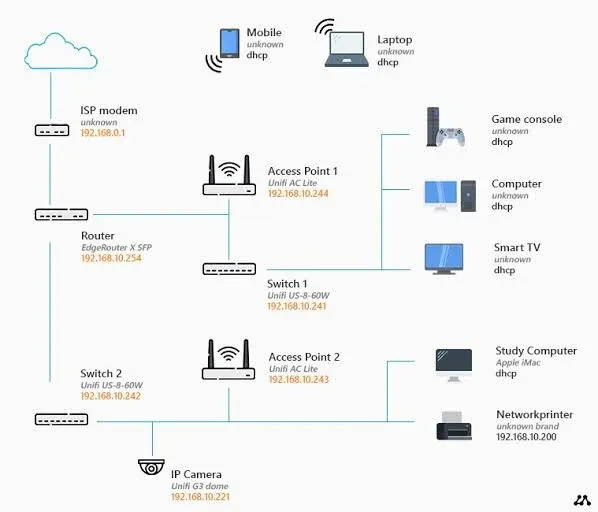
Whole-House Router VPN Network Topology Architecture Diagram
Figure 1: Whole-house network topology diagram demonstrating how a VPN client router encrypts traffic for all connected household devices.

2. Understanding Router Compatibility: VPN Client vs VPN Server

Before purchasing hardware or attempting installation, it is crucial to understand the technical distinction between a VPN Client and a VPN Server. Many commercial Wi-Fi routers advertise “VPN Support” on their retail boxes, but this label often refers exclusively to VPN Server mode. A router operating in VPN Server mode allows you to connect back to your home network remotely while traveling, but it does not encrypt your household internet traffic or hide your public IP address from your Internet Service Provider. If you are unfamiliar with how encrypted tunnels operate, read our complete guide on how a VPN encrypts network traffic.

To encrypt your entire home network, your router must support VPN Client mode. In VPN Client mode, your router acts as a subscriber endpoint, establishing an outbound encrypted connection to a commercial VPN provider. All incoming and outgoing data packets from your household devices are encrypted by the router before traveling across your ISP’s physical lines. Standard modem/router combos supplied by Internet Service Providers almost never support VPN Client mode, requiring users to either purchase a third-party router or flash custom open-source firmware.

3. Choosing the Right Hardware: Router CPU and RAM Requirements

Running real-time encryption and decryption algorithms on an entire household’s worth of data traffic requires substantial computational power. When a router acts as a VPN client, its central processing unit (CPU) must process every data packet on the fly.

Key hardware factors to evaluate before setting up a router VPN include:
  • Processor Architecture & Clock Speed: Older routers powered by single-core 600MHz MIPS processors will suffer severe speed bottlenecks, capping download speeds at 15 to 30 Mbps. Choose routers powered by multi-core ARM processors (such as quad-core 1.8GHz or 2.0GHz CPUs) to achieve high-speed throughput.
  • Protocol Support (WireGuard vs OpenVPN): OpenVPN requires heavy cryptographic calculations that strain router CPUs. Routers supporting WireGuard Client mode deliver 3x to 5x faster throughput with far lower CPU thermal loads. Read our benchmark comparison on WireGuard vs OpenVPN protocol performance on router CPUs.
  • Recommended Hardware Brands: Asus (AsusWRT firmware features native VPN Client support out of the box), GL.iNet (built on OpenWrt with pre-installed WireGuard interfaces), and Synology routers offer the best out-of-the-box VPN performance.
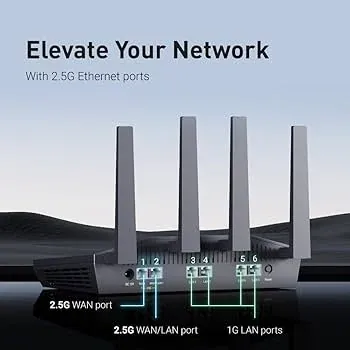
Modern High-Performance Wi-Fi 6 Router Hardware
Figure 2: Modern high-performance Wi-Fi 6 router equipped with a multi-core processor for fast hardware-accelerated VPN encryption.

4. Step-by-Step Guide: Configuring a VPN on AsusWRT Firmware

Asus routers running stock AsusWRT or AsusWRT-Merlin firmware offer the easiest VPN Client setup process in the networking industry.

Follow these step-by-step instructions to configure your Asus router:

  1. Download Configuration Files: Log in to your commercial VPN provider account on a web browser. Download the OpenVPN configuration file (.ovpn) or generate a WireGuard configuration file / QR key for your target server location.
  2. Access Your Router Admin Portal: Open a web browser, type 192.168.50.1 or router.asus.com into the address bar, and log in with your router administrator credentials.
  3. Navigate to the VPN Section: In the left sidebar menu, click on VPN, then select the VPN Client tab (or VPN Fusion on newer Asus models).
  4. Add a New VPN Profile: Click Add profile (or Create Network). Select your preferred protocol tab (OpenVPN or WireGuard).
  5. Upload Configuration File & Credentials: Enter a descriptive name (e.g., ExpressVPN US), upload the downloaded .ovpn or WireGuard config file, and enter your VPN service username and password if required.
  6. Activate the Connection: Click OK and toggle the Activate switch. Once the connection status displays a green checkmark or IP address, your entire home network is encrypted.

5. Step-by-Step Guide: Setting Up a VPN on DD-WRT & OpenWrt

If your router does not support native VPN client capabilities out of the box, you can flash custom open-source firmware such as DD-WRT or OpenWrt.

Follow this general configuration workflow for open-source firmware:

  1. Verify Firmware Compatibility: Check the official DD-WRT or OpenWrt device database to ensure your exact router model and hardware revision support custom flashing.
  2. Flash Custom Firmware: Carefully upload the custom firmware bin file via your router’s firmware update utility. Warning: Interrupting this process can brick your device.
  3. Access Admin Interface: Connect to the newly flashed router via Ethernet and open the admin portal (typically 192.168.1.1).
  4. Configure OpenVPN / WireGuard Client:
    • On DD-WRT: Navigate to Services > VPN, enable OpenVPN Client, paste your .ovpn inline configurations, set CA certificates, and save settings.
    • On OpenWrt: Install the luci-app-openvpn or luci-proto-wireguard packages via SSH or LuCI interface, import your provider configuration keys, and map the interface to the WAN zone.
  5. Set Up Firewall & DNS Rules: Configure custom iptables firewall rules to ensure that DNS requests are routed through the VPN tunnel rather than your ISP’s default DNS servers.

6. How Split Tunneling Works on VPN Routers

One of the biggest concerns when installing a router VPN is the potential impact on bandwidth-sensitive or region-locked household activities. For instance, while you may want your smart TVs and laptops routed through a privacy-focused VPN server, you might prefer your local gaming PC or local banking apps to bypass the VPN tunnel to achieve the absolute lowest ping or avoid security triggers.

Split tunneling-frequently referred to as Policy-Based Routing or VPN Fusion on modern routers-resolves this conflict by granting granular control over network traffic. Instead of forcing every device through a single encrypted path, policy-based routing inspects incoming device MAC addresses or local IP ranges and routes them dynamically. Devices assigned to the VPN rule travel through the encrypted tunnel, while excluded devices route directly out through your standard local Internet Service Provider connection.

Configuring policy-based routing ensures that specialized hardware like Xbox or PlayStation consoles maintain low-ping gaming connections, while privacy-sensitive devices like work laptops, mobile phones, and streaming boxes enjoy uninterrupted whole-house encryption.

7. Common Troubleshooting Steps for Router VPN Connections

If your router VPN connection drops or experiences slow speeds, use these targeted troubleshooting procedures:

  • Preventing DNS Leaks: If websites detect your real location while the VPN is active, your router is leaking DNS queries. Manually set your router’s local DNS servers to secure static addresses (such as 1.1.1.1 or your VPN provider’s private DNS IPs).
  • Fixing Double NAT Conflicts: If your VPN router is plugged into an ISP-supplied modem/router combo, you may experience Double NAT errors. Log into your ISP modem and enable Bridge Mode or IP Passthrough to hand public WAN control to your VPN router.
  • Optimizing MTU Packet Sizes: Large data packets can fragment across VPN tunnels, causing slow web page loads. Lower your router’s MTU (Maximum Transmission Unit) setting from 1500 to 1420 or 1400 to prevent packet fragmentation.
  • Resolving IP Address Conflicts: Ensure your VPN router’s local IP subnet (e.g., 192.168.50.X) does not conflict with the remote VPN server subnet or your upstream ISP modem subnet (192.168.1.X).

Smart Home Household Connected Devices on Wi-Fi Network
Figure 3: Smart home devices-smartphones, laptops, Smart TVs, and gaming consoles-connected simultaneously to a whole-house VPN Wi-Fi network.

8. Final Pros and Cons of a Whole-House Router VPN Setup

Setting up a router VPN provides unmatched network-wide security, but it involves trade-offs compared to running standalone software apps on individual devices.

Feature Comparison Router-Level VPN Setup Standalone Device Apps
Protected Device Count Unlimited (Entire Network) Limited (5 to 10 per account)
Smart TV / Console Support Native Automatic Protection Requires Smart DNS / Complex Setup
Setup Complexity Moderate to Advanced Very Easy (One-Click Install)
Server Location Switching Requires Router Admin Access Instant via Mobile/Desktop App
Hardware Requirements Powerful Multi-Core CPU Router Standard Smartphone / Computer

Advantages

  • 100% Comprehensive Household Privacy: Every connected device-including guests and smart appliances-is automatically protected.
  • Bypasses Account Device Limits: Protect 20+ household gadgets while consuming only one active connection slot on your VPN plan.
  • Zero Software Maintenance: No need to update or manage individual VPN apps across family devices.

Disadvantages

  • Hardware Bottlenecks on Weak Routers: Budget routers with slow processors will experience noticeable speed drops.
  • Less Convenient Server Switching: Changing server locations requires logging into the router admin dashboard rather than tapping a smartphone app.

Final Verdict: For modern homes filled with smart devices, installing a VPN on a capable multi-core router is the single most effective cybersecurity upgrade you can make.

Frequently Asked Questions

Everything you need to know about How to Set Up a VPN on Your Wi-Fi Router for Entire House.

Can I install a VPN on any Wi-Fi router?
No. Standard ISP-provided modem/router combos usually lack VPN client software capabilities. You need a router that natively supports VPN Client mode (such as Asus, GL.iNet, or Synology) or a router compatible with custom open-source firmware like DD-WRT or OpenWrt.
Does a router VPN count as one connection on my VPN subscription?
Yes! A router VPN counts as only ONE active connection on your VPN plan, even if you connect 50 different devices (Smart TVs, laptops, phones, IoT gadgets) to your router's Wi-Fi network.
Will installing a VPN on my router slow down my internet?
Because routers handle encryption processing for every connected device, routers with weak CPUs can experience speed loss. Using a router with a powerful quad-core ARM CPU and enabling WireGuard minimizes speed drops to under 10%.
Can I exclude specific devices from the router VPN?
Yes. Routers with Policy-Based Routing or Split Tunneling features (like AsusWRT or GL.iNet) allow you to specify which devices use the VPN tunnel and which connect directly through your regular ISP.