How to Password-Protect ZIP Files and Folders on PC (2026 Guide)

OUR EXPERT
Alex Rivera
Alex RiveraLead Security Analyst

The CompareVPNList expert team has tested VPNs and security tools year-round to verify encryption, speed, and real-world privacy protection.

LOOK INSIDE OUR LABSHOW WE TEST
10+EXPERTS
5+YEARS
43K+REVIEWS
Updated Jul 27, 2026

Whether you are sharing confidential financial documents, storing personal tax records, or sending sensitive client files across the internet, protecting your digital data from unauthorized access is a fundamental cybersecurity habit. Compressing files into a ZIP archive with password encryption ensures that even if your file is intercepted, stolen, or accidentally emailed to the wrong recipient, its contents remain completely unreadable without the correct decryption key.

While Windows 10 and Windows 11 include built-in zip compression tools, the native Windows File Explorer interface does not allow you to set password protection on standard ZIP folders out of the box. Combine local file encryption with our top-rated cybersecurity and privacy tools to achieve complete end-to-end data security.

This comprehensive step-by-step tutorial explains how to password-protect ZIP files and folders on PC using free, open-source utilities like 7-Zip, breaks down the differences between encryption algorithms, and outlines best practices for secure file sharing.

1. Why You Should Password-Protect Sensitive Files and Folders

In today’s interconnected digital environment, unencrypted files stored on your local hard drive or uploaded to cloud storage represent a significant security liability. To understand how encryption shields data across networks, read our complete guide on how network encryption secures data in transit.

Key scenarios where password-encrypting your archives is essential include:

  • Securing Cloud Storage Uploads: Cloud providers (like Google Drive, Dropbox, or OneDrive) scan stored files. Encrypting archives before uploading ensures total privacy against cloud data breaches.
  • Protecting Shared Family Computers: Prevents family members, room-mates, or guests who share your PC from viewing confidential personal or financial records.
  • Safe Email File Attachments: Email protocols transmit attachments across public servers. Password-protecting ZIP files prevents eavesdroppers from reading sensitive PDFs, spreadsheets, or images in transit.
  • Preventing Data Theft from Stolen Laptops: If your laptop is lost or stolen, password-encrypted ZIP files prevent thieves from accessing your sensitive documents.

2. Understanding Encryption Standards: AES-256 vs ZipCrypto

Before creating an encrypted archive, it is crucial to understand the difference between the two primary encryption algorithms available in compression software: ZipCrypto and AES-256. ZipCrypto is an legacy encryption standard developed in the early days of personal computing to provide basic file protection. Because ZipCrypto contains known cryptographic vulnerabilities, modern password-cracking utilities can break ZipCrypto protection in a matter of minutes using dictionary or known-plaintext attacks, making it unsuitable for sensitive documents.

In contrast, AES-256 (Advanced Encryption Standard with a 256-bit key) is a military-grade symmetric encryption cipher trusted by international financial institutions, cybersecurity experts, and government agencies worldwide. When you encrypt a ZIP archive using AES-256 paired with a complex password, it is mathematically impossible for unauthorized parties to crack the archive within any practical human timeframe. Always ensure your archive software is set to AES-256 encryption rather than ZipCrypto.

7-Zip is a free, open-source, lightweight file archiving utility for Windows that supports military-grade AES-256 encryption out of the box.

Follow these step-by-step instructions to encrypt files or folders using 7-Zip:

  1. Download and Install 7-Zip: Navigate to the official 7-Zip website (7-zip.org), download the 64-bit Windows installer, and complete the quick installation.
  2. Select Your Target Files or Folders: Open Windows File Explorer, highlight the files or folders you want to protect, and right-click them.
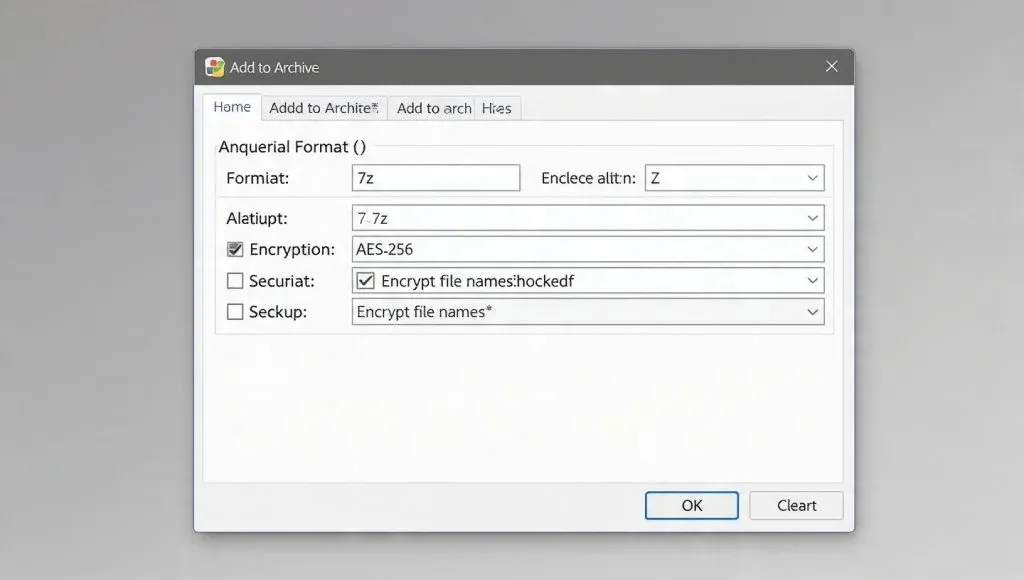
  3. Open the 7-Zip Menu: In the right-click context menu, hover over 7-Zip and click Add to archive…
  4. Choose Archive Format: Set the Archive format dropdown to zip (or 7z for even higher compression).
  5. Configure AES-256 Encryption: Under the Encryption section on the right side of the window, set the Encryption method to AES-256.
  6. Enter a Strong Password: Type a robust password into the Enter password and Re-enter password fields (use at least 12 characters combining letters, numbers, and symbols).
  7. Create the Encrypted Archive: Click OK. 7-Zip will generate a new password-protected .zip file in the same folder directory.
7-Zip AES-256 Archive Password Encryption Interface
Figure 1: 7-Zip file archiver dialog window configuring AES-256 password encryption for a ZIP archive.

4. How to Encrypt Folders Using WinRAR or Bandizip

If you prefer using WinRAR or Bandizip over 7-Zip, both archiving utilities provide strong AES-256 password protection options.

Method Using WinRAR

  1. Right-Click the Target Folder: Select the folder you wish to compress, right-click, and choose Add to archive…
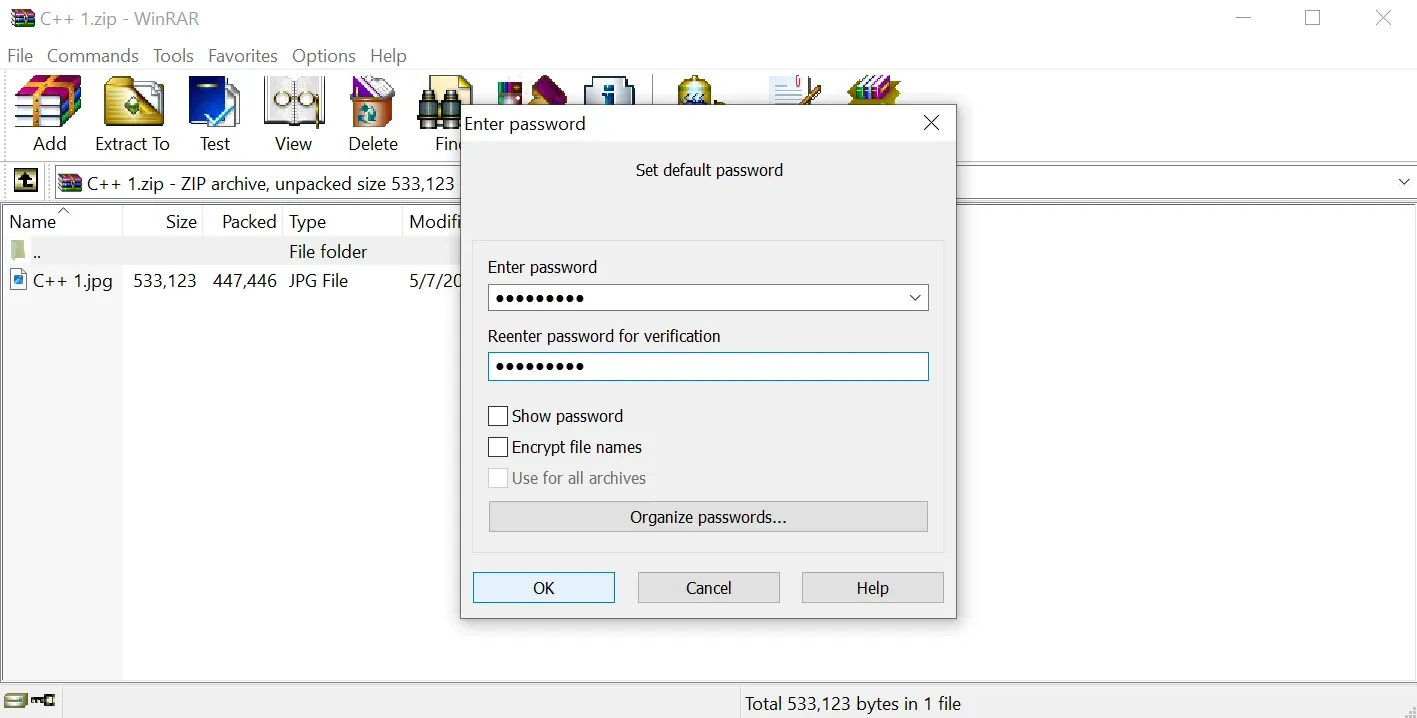
  2. Click Set Password: In the General tab of the WinRAR window, click the Set password… button in the lower right corner.
  3. Enter Password & Enable File Name Encryption: Type your password. Optionally check Encrypt file names so unauthorized users cannot even see the names of files inside the archive before entering the password.
  4. Click OK to Generate Archive: Click OK, then click OK again to compress and encrypt your files into a .rar or .zip archive.

Method Using Bandizip

  1. Open Bandizip & Add Files: Open Bandizip, click New Archive, and drag your files into the main window.
  2. Set Encryption Options: Click Set Password at the bottom of the window, enter your secure password, and ensure the encryption algorithm is set to AES-256.
  3. Start Archiving: Click Start to create your password-protected archive.
WinRAR Set Password Encryption Options Window
Figure 2: WinRAR file compression window configuring password protection and file name encryption.

5. Built-in Windows Options: BitLocker and EFS Folder Encryption

While native Windows File Explorer cannot password-protect .zip files directly without third-party software, Windows Pro, Enterprise, and Education editions include two built-in enterprise encryption tools: EFS (Encrypting File System) and BitLocker.

Windows native encryption features include:

  • Encrypting File System (EFS): Allows Windows Pro users to right-click a folder, select Properties > Advanced, and check Encrypt contents to secure data. EFS locks files to your active Windows user account rather than requiring a password prompt upon opening.
  • BitLocker Drive Encryption: Encrypts an entire hard drive partition or external USB flash drive, requiring a password or recovery key whenever the drive is connected to a computer.
  • BitLocker To Go: Secures portable external hard drives and USB thumb drives for safe transport between different Windows PCs.

6. How to Safely Share Password-Protected Files Over Email or Cloud

Creating an AES-256 encrypted ZIP archive is only half of the security equation. The remaining vulnerability lies in how you transmit the file and its corresponding decryption password to your recipient.

A common mistake users make is sending the password-protected ZIP file as an email attachment and then emailing the decryption password in the exact same email thread. If an attacker intercepts or accesses the recipient’s email inbox, they will easily find both the encrypted file and the key to unlock it. To maintain true security, always practice out-of-band password transmission. Send the encrypted ZIP file via email or cloud link, but transmit the decryption password using an end-to-end encrypted messaging service (such as Signal or WhatsApp) or convey it verbally over the phone.
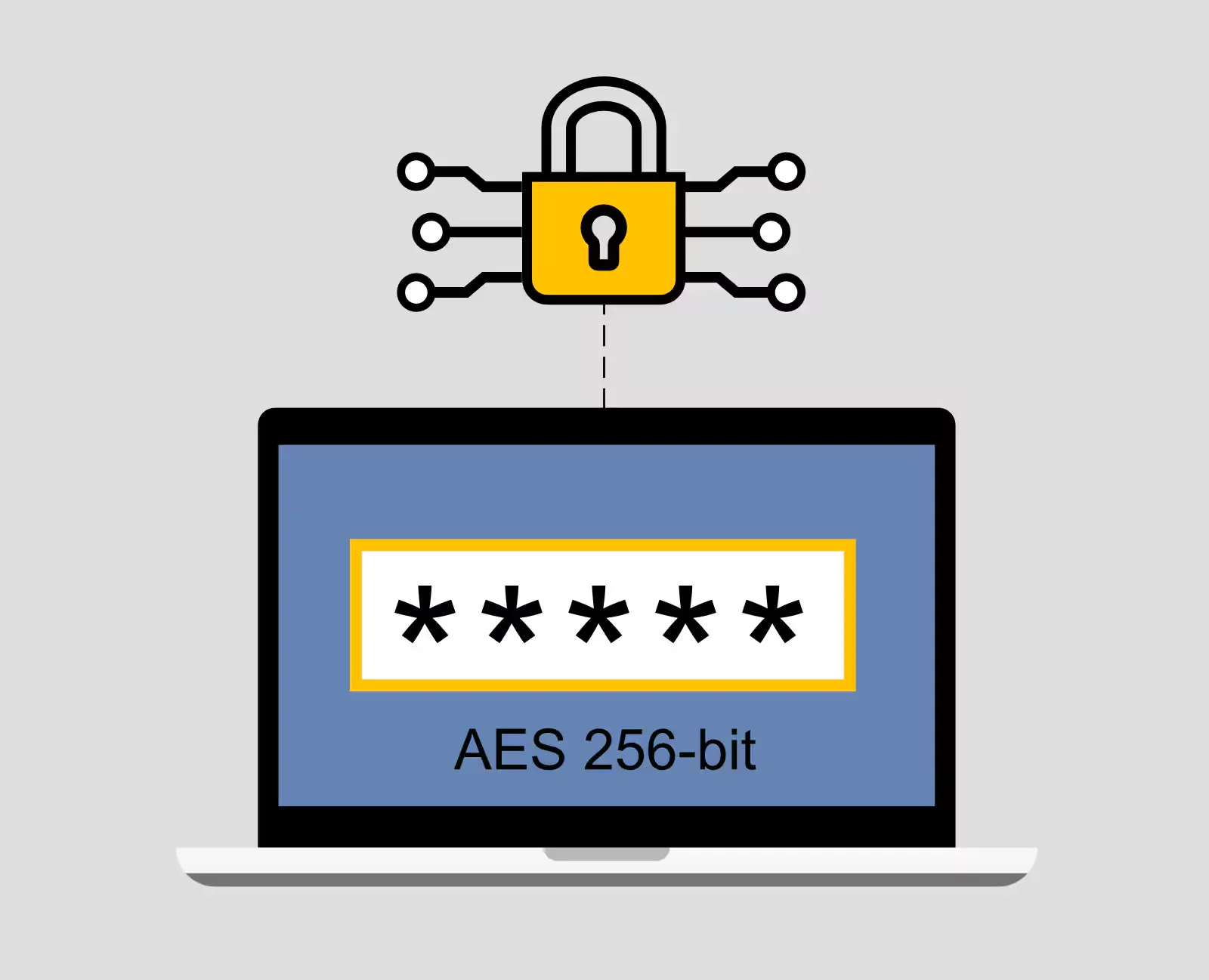
Encrypted Folder with Security Padlock Icon
Figure 3: Encrypted folder secured with military-grade AES-256 password protection.

7. Common Mistakes to Avoid When Password-Protecting Archives

To ensure your password-protected archives remain completely secure, avoid these common operational pitfalls:

  • Using Weak or Predictable Passwords: Avoid short passwords like Password123 or simple dictionary words. Use a strong passphrase of 12+ characters generated by a secure password manager.
  • Selecting Legacy ZipCrypto Encryption: Always double-check that your archiving tool is set to AES-256 rather than legacy ZipCrypto.
  • Leaving Unencrypted Original Files on Disk: After creating your password-protected ZIP archive, remember to permanently delete (Shift + Delete) the original unencrypted files from your hard drive so they cannot be recovered from the Recycle Bin. Protecting offline files works hand-in-hand with guarding against memory threats; learn more about fileless malware and endpoint security.
  • Forgetting the Decryption Password: AES-256 encryption cannot be bypassed without a password. Always back up your archive passwords in a secure password manager to prevent permanent data loss.

8. Summary Comparison of Archive Encryption Software for Windows

Choosing the right software tool depends on your operating system, budget, and specific security requirements.

Feature Comparison 7-Zip WinRAR Bandizip Windows Native EFS
Price / License 100% Free (Open-Source) Shareware ($29 / Free Trial) Free / Paid Edition Built-in (Windows Pro/Ent)
AES-256 Encryption Yes (Fully Supported) Yes (Fully Supported) Yes (Fully Supported) Yes (Account Bound)
Encrypt File Names Yes (in .7z format) Yes (in .rar format) Yes (in paid edition) N/A (Windows System)
Context Menu Integration Excellent Excellent Excellent Built-in Properties
Cross-Platform Support Windows, Linux, Mac Windows, Android, Mac Windows, Mac Windows Only

Final Recommendation: For 99% of Windows users, 7-Zip is the ultimate choice. It is completely free, lightweight, contains zero advertisements, and provides uncrackable AES-256 encryption for all your confidential files and folders.

Frequently Asked Questions

Everything you need to know about How to Password-Protect ZIP Files and Folders on PC (2026 Guide).

Can Windows 11 natively password-protect ZIP files without software?
Windows 11 can extract and create standard unencrypted .zip files out of the box, but it does not include a native tool to apply password encryption directly to a standard ZIP folder. To encrypt ZIP archives with strong AES-256 passwords, you need a free utility like 7-Zip.
What is the difference between ZipCrypto and AES-256 encryption?
ZipCrypto is an older, legacy encryption method that can be cracked in minutes using automated password-recovery tools. AES-256 is a modern, military-grade encryption standard that is mathematically uncrackable against brute-force attacks.
Is 7-Zip completely free and safe to use?
Yes! 7-Zip is an open-source, lightweight, completely free file archiver with no ads or hidden fees. It is widely considered the industry standard for creating AES-256 encrypted archives on Windows.
What happens if I forget the password to an encrypted ZIP file?
If you encrypt a ZIP file using strong AES-256 encryption and forget your password, it is mathematically impossible to recover your data without a backup. Always store your archive passwords in a secure password manager.